 Glyfo
GlyfoYour screen is full of text you can’t select.
Glyfo reads it back out — screenshots, photos of a page, scanned forms, whole PDFs, a folder of images in one run. It uses the OCR already built into Windows, so nothing you capture is ever uploaded anywhere.
No ads, nothing to buy, no account.
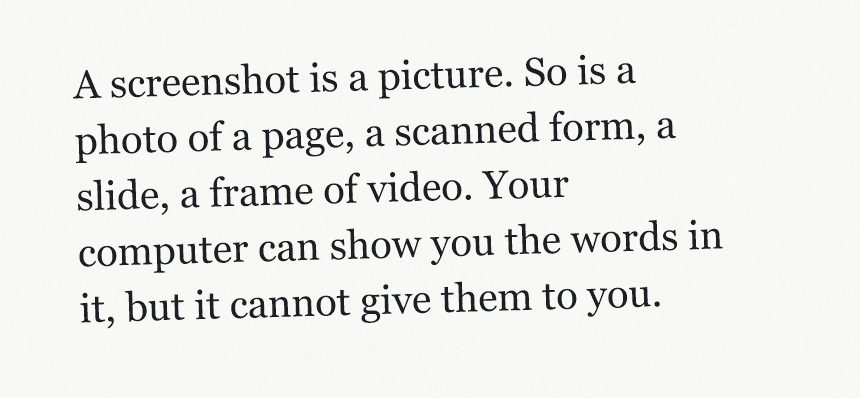
This is a picture. Try to select a word in it.
A screenshot is a picture. So is a photo of a page, a scanned form, a slide, a frame of video. Your computer can show you the words in it, but it cannot give them to you.
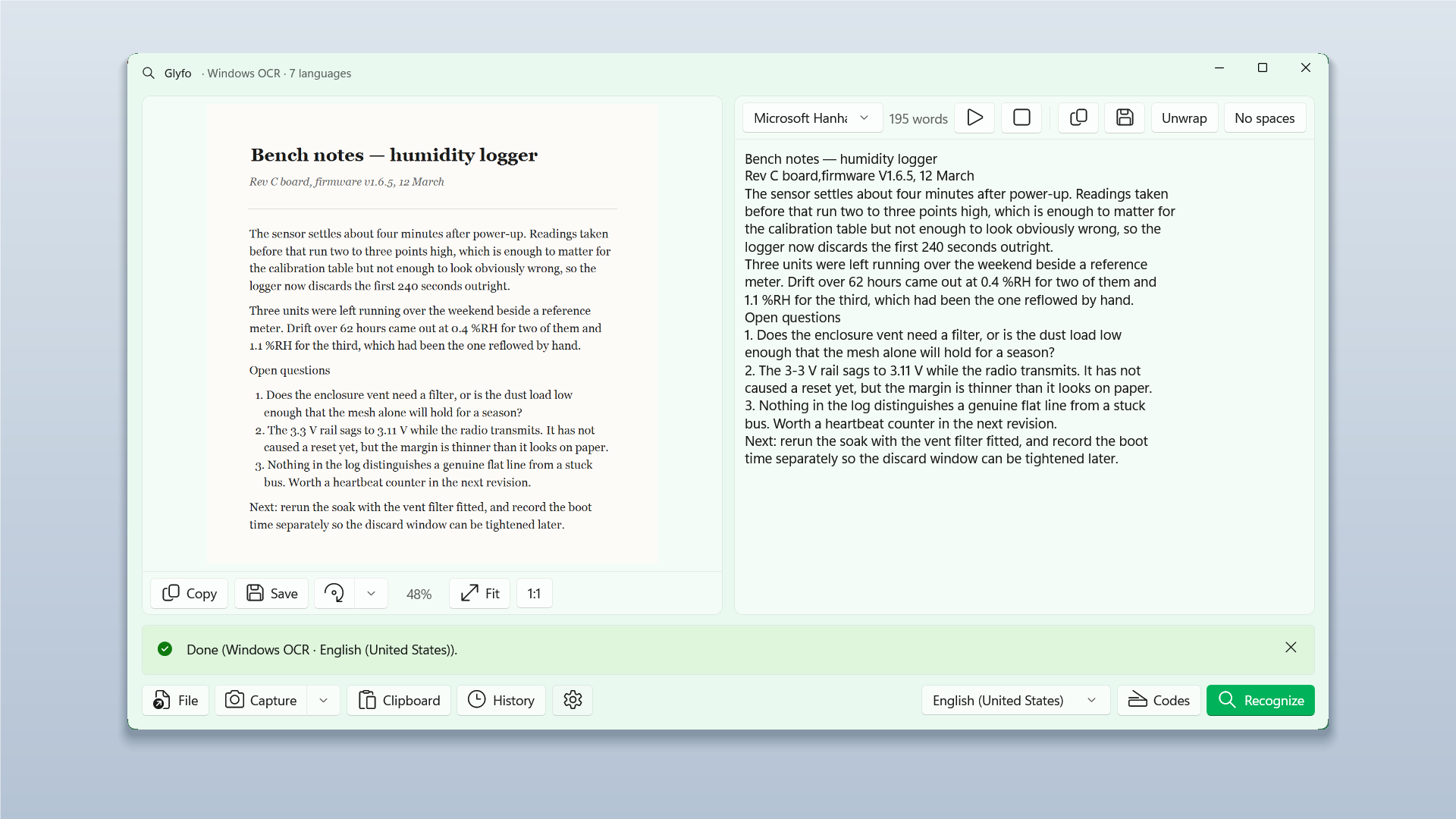
This is what Glyfo hands back. Select it, copy it, search it, have it read aloud.
It makes no network connections.
Not “your data is safe with us” — there is no server to send it to. Recognition runs on the OCR engine that ships with Windows. On a Copilot+ PC, Glyfo also uses the on-device recognition model for harder images and can translate what it found, still without going online.
No account. No telemetry. No advertising. Images, recognised text and translations never leave your PC.
Don’t take that on trust. Open Resource Monitor while Glyfo is running and watch its network activity, or block it in Windows Firewall and see that nothing changes.
Five ways to get an image in.
- Alt + Z
- Drag a box around any part of the screen. Ctrl + Shift + R takes the whole screen. Both shortcuts are yours to change.
- Ctrl + V
- Paste an image straight from the clipboard. Text works too.
- Ctrl + O
- Open a picture or a PDF. Dragging one onto the window works as well.
- Open with Share
- Right-click a picture in File Explorer and open it with Glyfo, or send it over from Photos, Snipping Tool or your browser.
- Win + Shift + S
- Switch on clipboard watching and every snip you take is read on its own, with the text left on the clipboard for you to paste. Off until you ask for it.
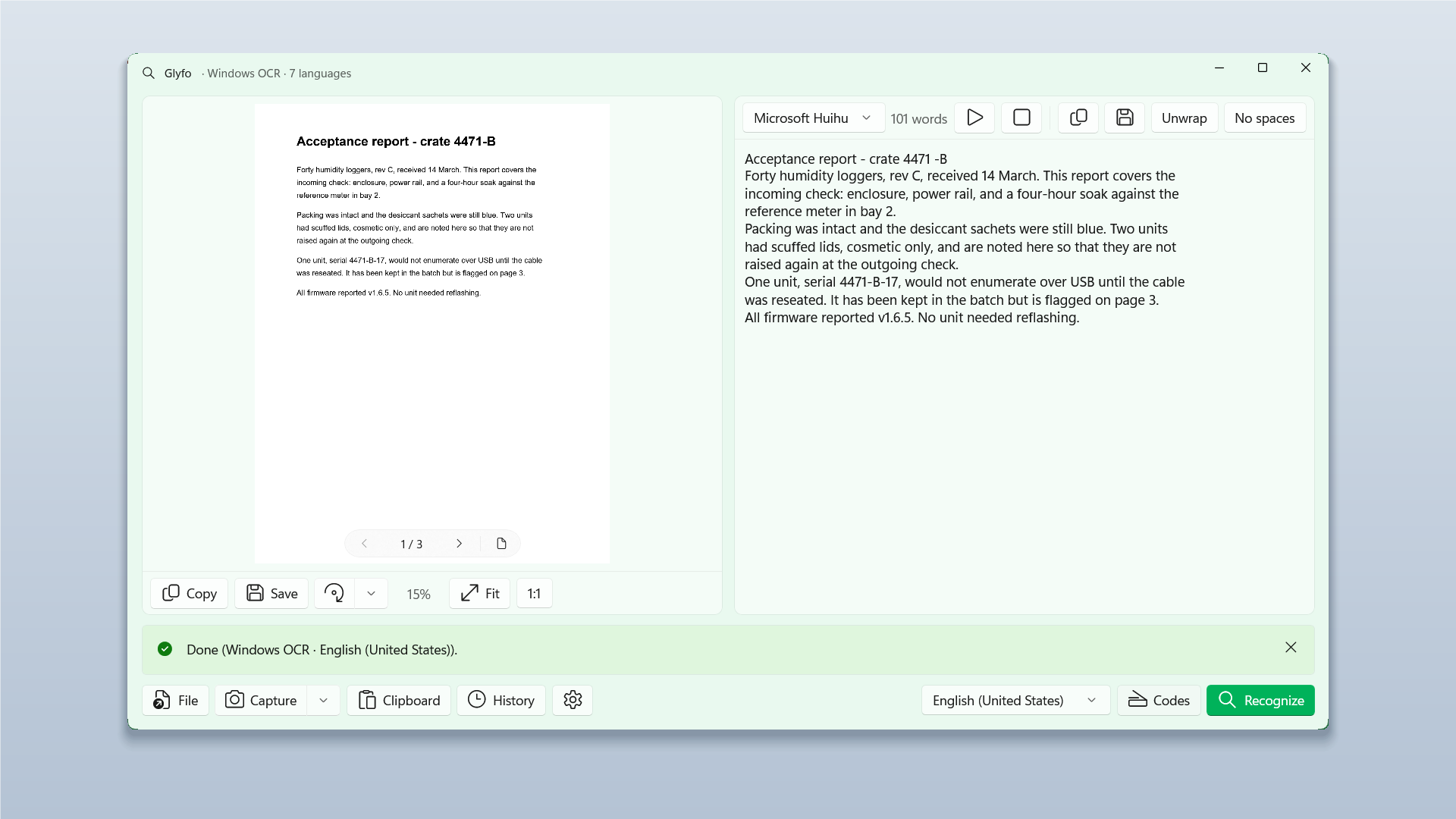
A whole PDF, or a folder of scans, in one run.
Open a PDF the way you open a picture and read it a page at a time, or send the whole
document through at once. Drop a stack of images on the window and every one of them is
recognised in a single pass. Save the result as one file or as one file per page,
in .txt or .md.
Glyfo gives you the text. It does not write a text layer back into the PDF, so you get a readable, searchable copy of the words rather than a searchable version of the original file.
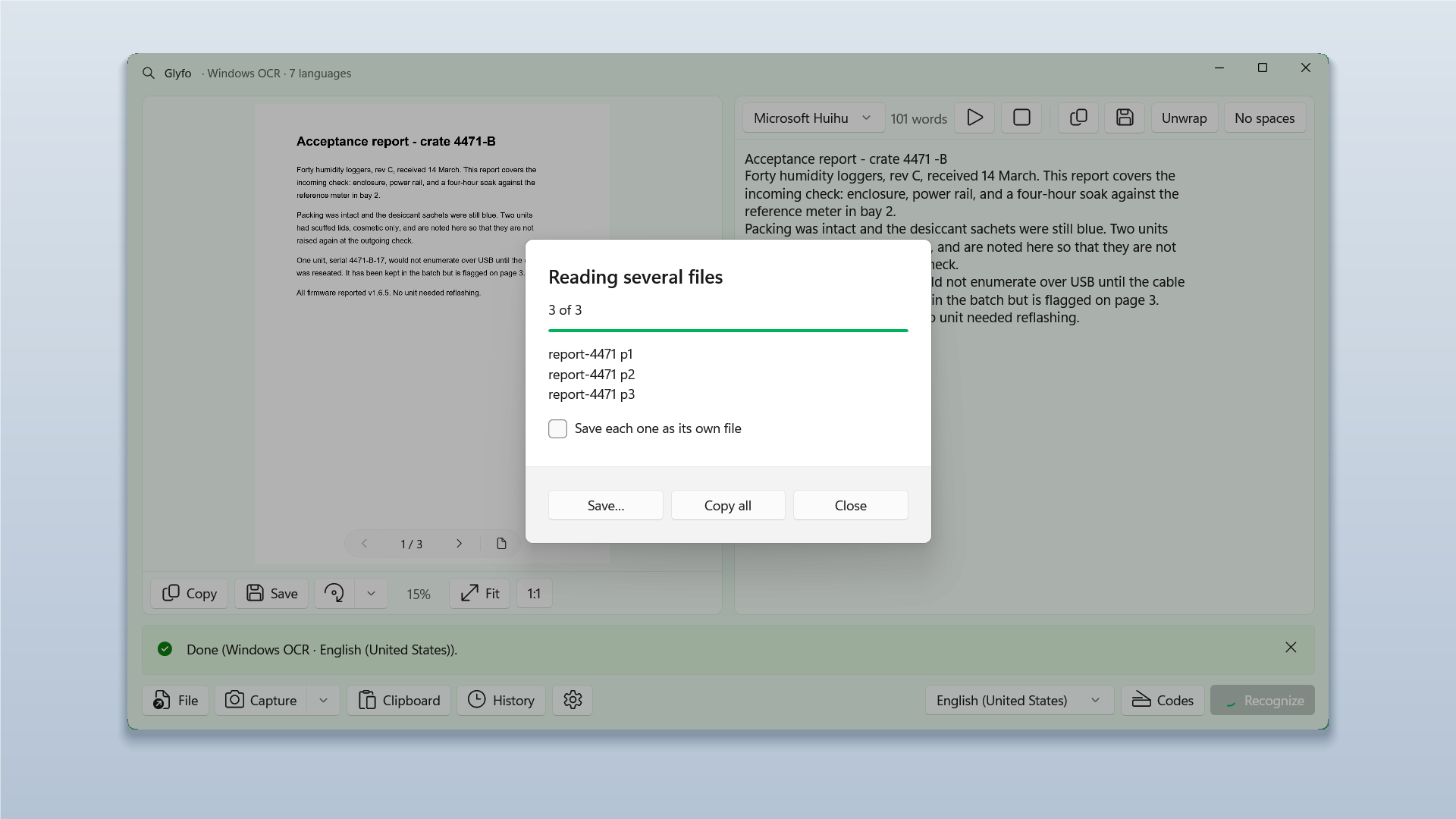
QR codes and barcodes
Read out of the same picture as the text, so there is no separate scanner app to open.
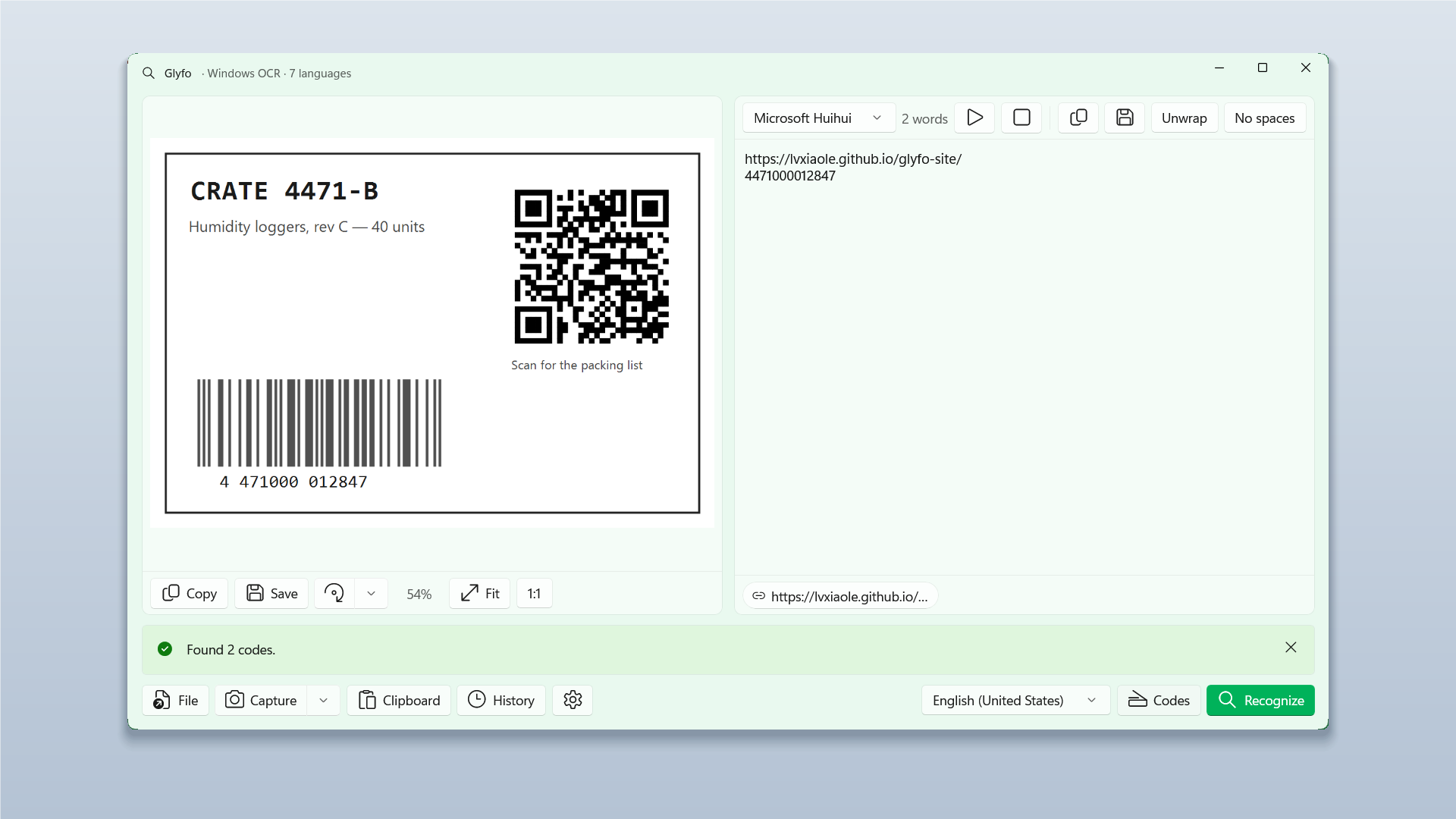
A history that survives a restart
Everything Glyfo reads is kept and can be searched. Text only, and you can empty it or switch it off.
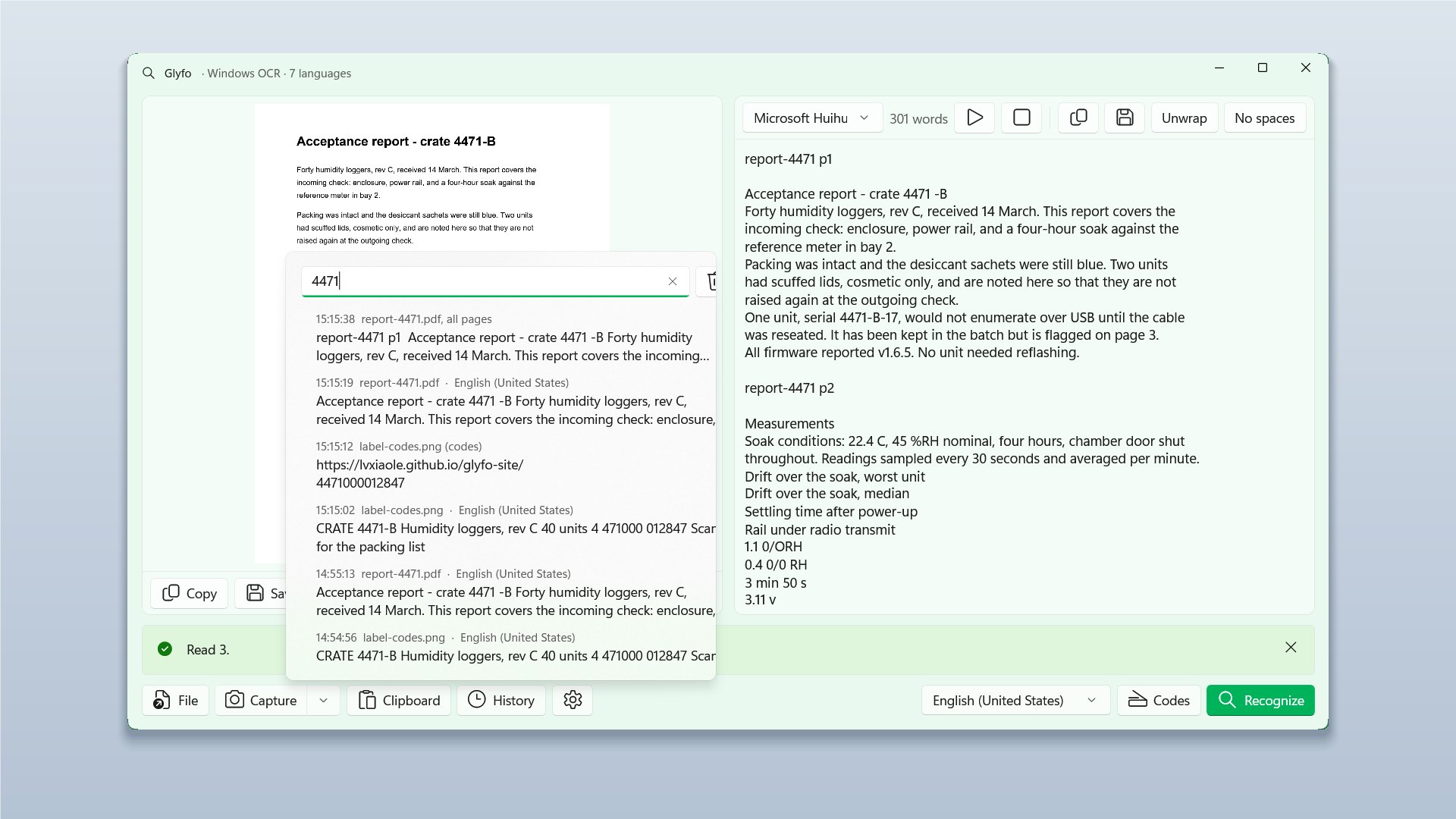
Whatever Windows can read
Pick the recognition language from the packs installed on your PC — Chinese, Japanese, Korean, Cyrillic and Greek among them — or let Glyfo choose it.
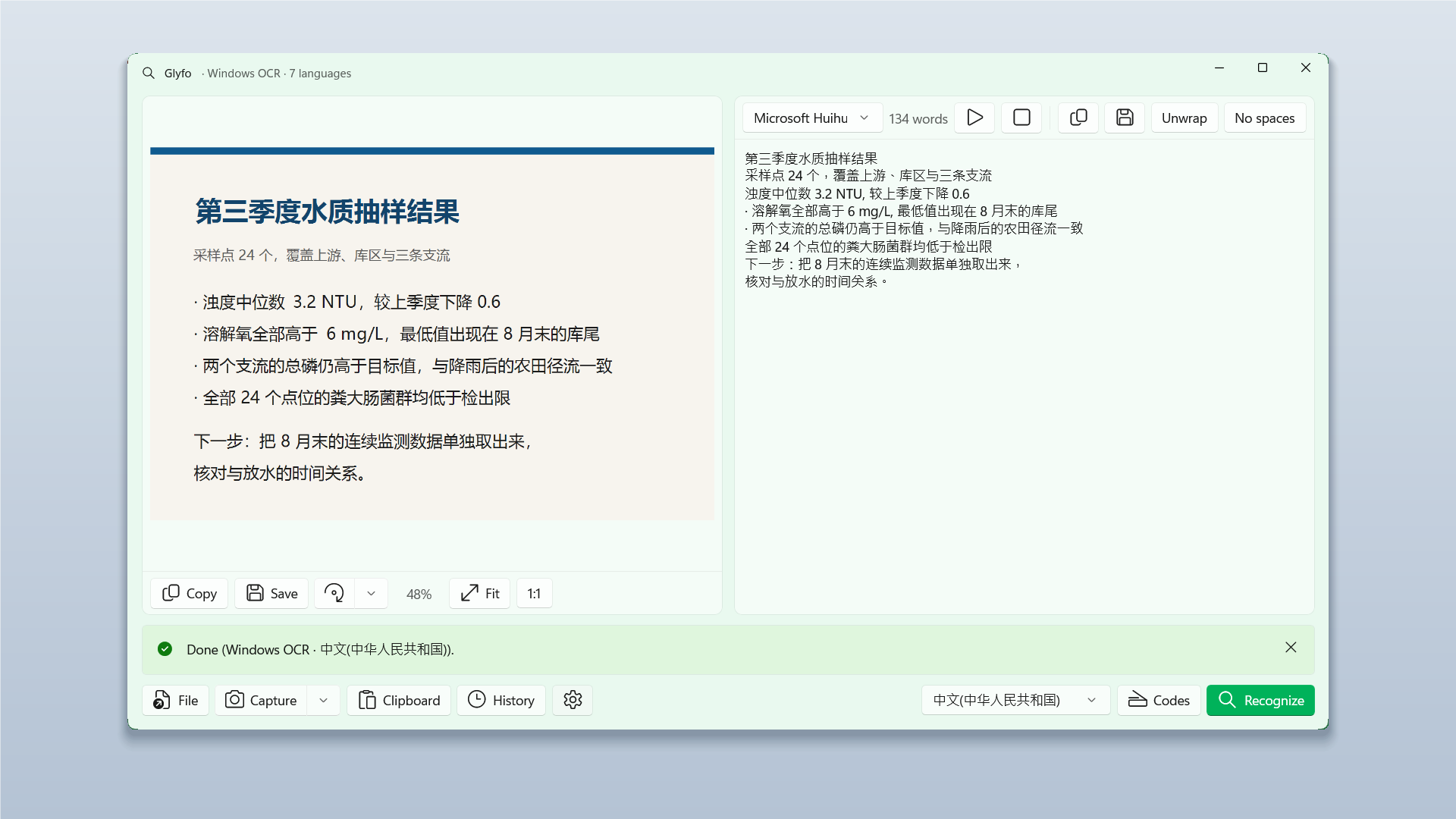
Out of the way
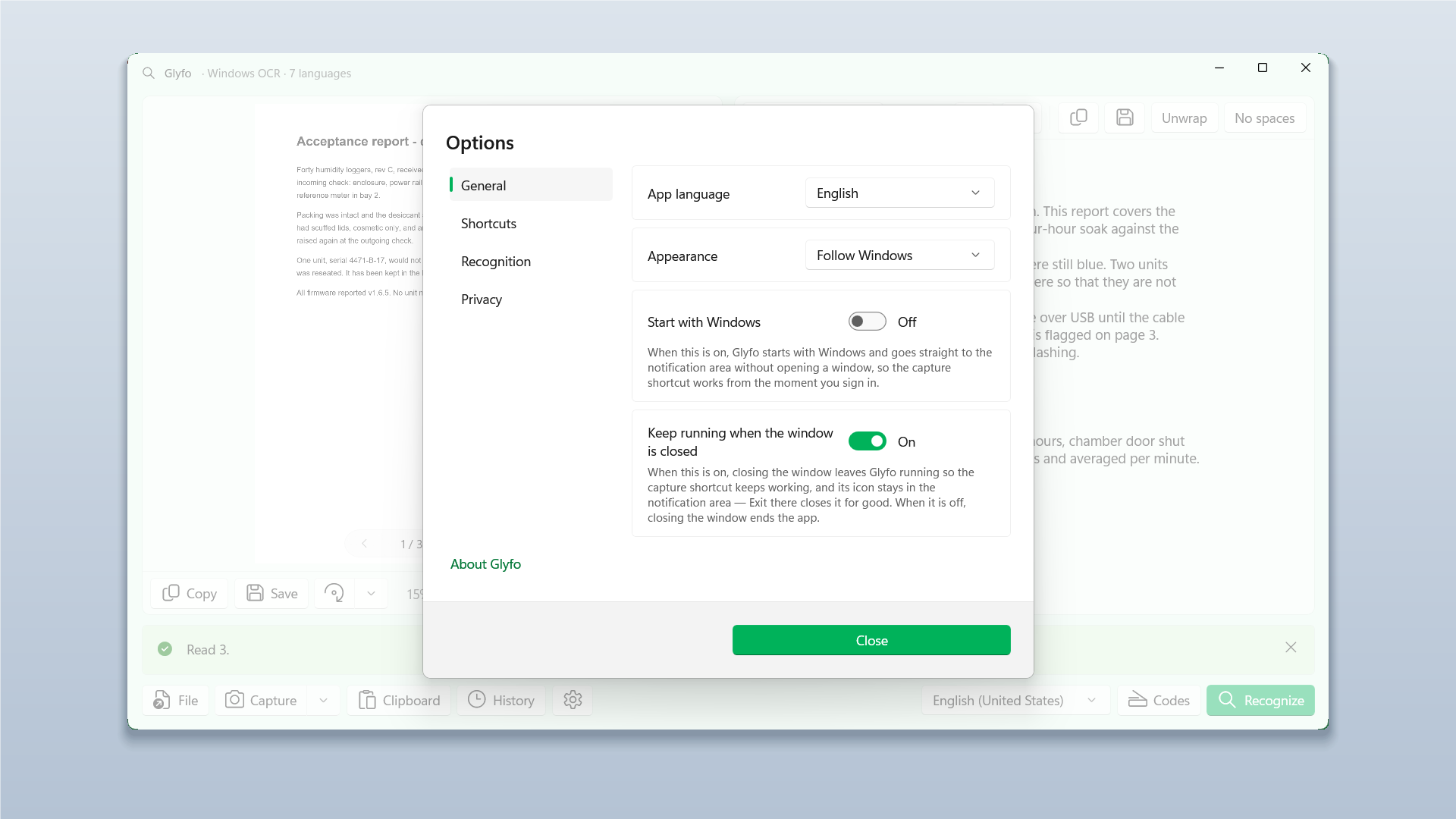
Close the window and Glyfo stays in the notification area with the capture shortcut still live. Interface in 33 languages, light or dark.
Doesn’t Windows already do this?
Partly. The Snipping Tool in Windows 11 can pull text out of a snip, and PowerToys has a text extractor. Both work on one screen region at a time and hand you the clipboard.
Glyfo also opens files and whole PDFs, runs a folder of images as a batch, saves to a file, keeps a searchable history, reads QR codes and barcodes out of the same picture, reads the result aloud in any voice on your PC, and puts hard line breaks back into paragraphs — or strips the spaces that Chinese, Japanese and Korean text needs after recognition. Its own interface is in 33 languages and follows your Windows language setting.
What it needs.
- Windows 10 version 2004 (build 19041) or later, or Windows 11.
- x64 or ARM64. Runs natively on both.
- Recognition languages come from the OCR packs Windows has installed. Add more under Settings › Time & language › Language & region.
- Translation and the enhanced-accuracy model need a Copilot+ PC. Everything else works on any supported machine.
Take a word off the screen.
Glyfo installs from the Microsoft Store and starts with Alt + Z. If it is not for you, uninstalling leaves nothing behind.
Free. No ads, nothing to buy, no account.